Gmail Creation
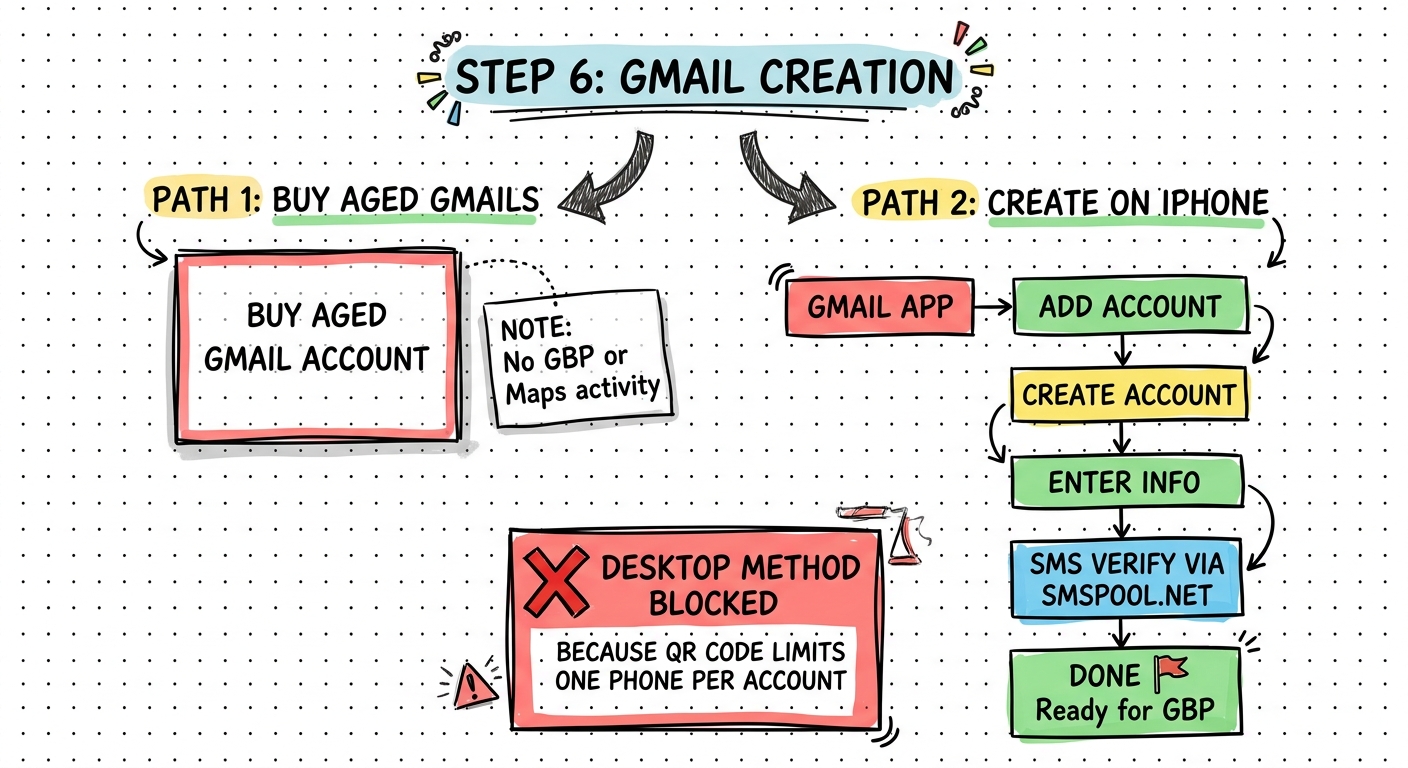
Only create 3-4 Gmails per day maximum
Desktop creation requires QR code phone pairing — only one account per phone. Use mobile creation instead.
Do NOT use accounts that have any GBP or Maps activity
Open the Gmail app on your iPhone
- Tap your profile icon
- Tap Manage Google Account
- Tap Add Another Account
- Select Google
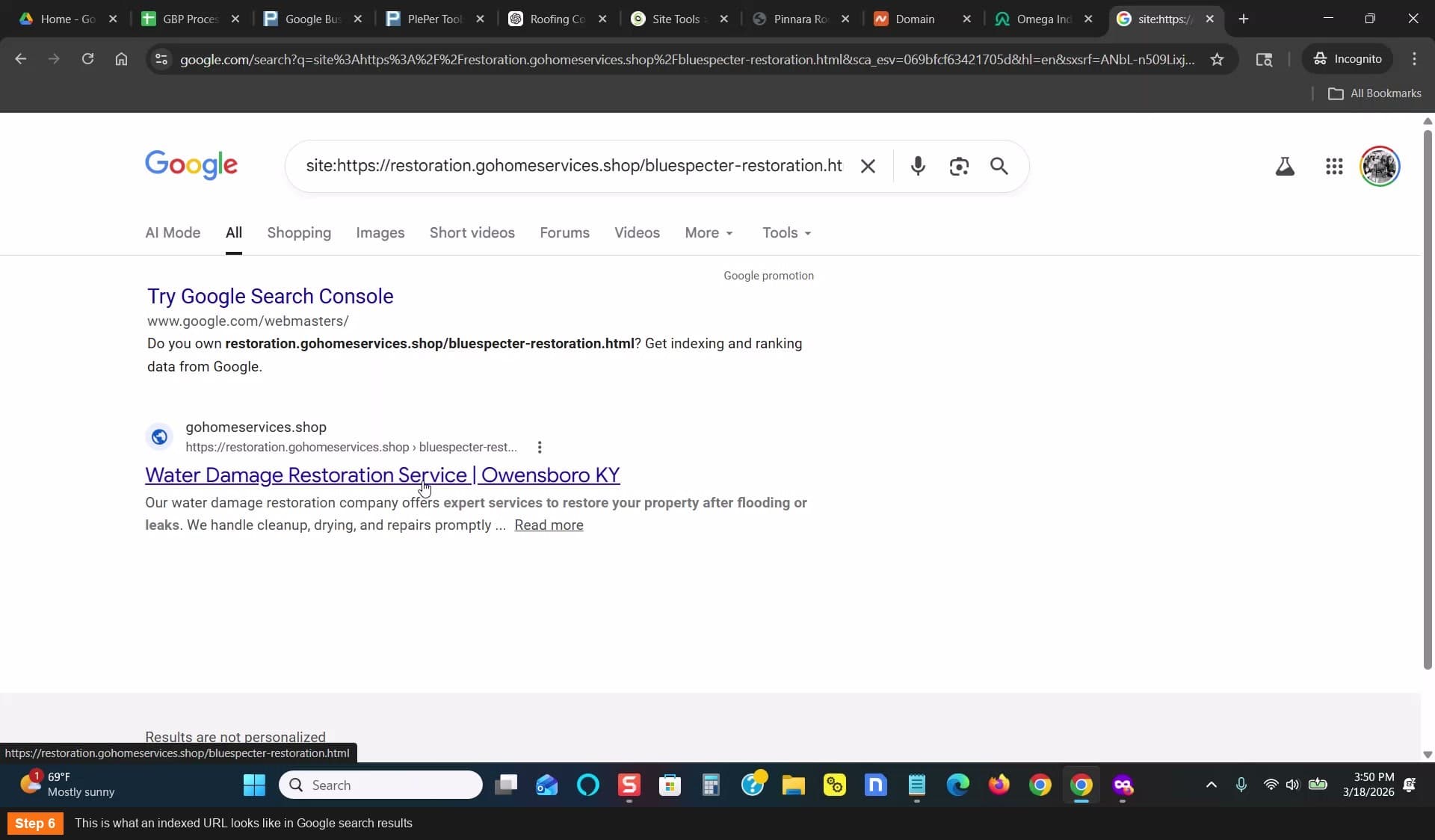
First, verify your URL is indexed in Google
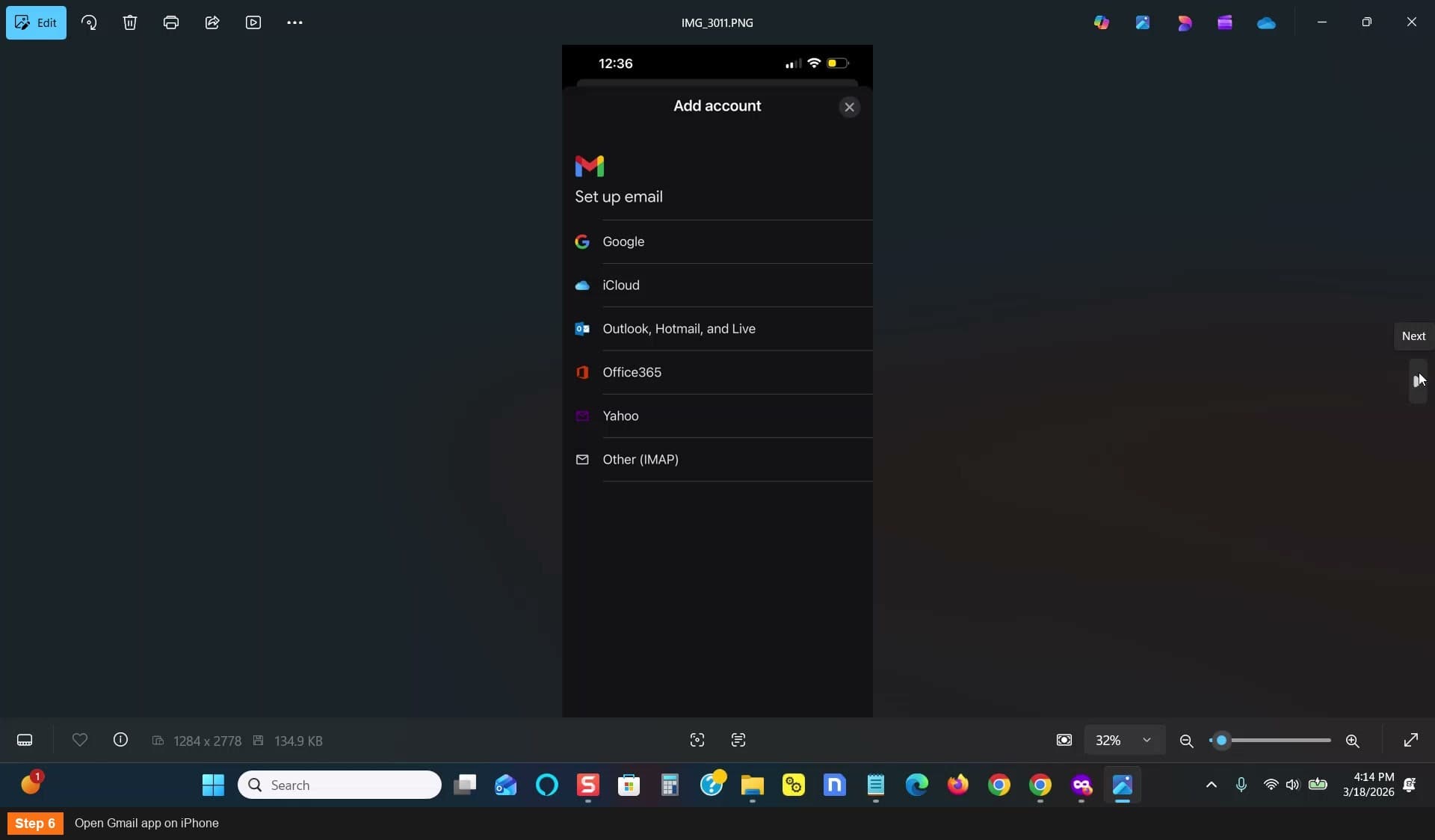
Open Gmail app on iPhone
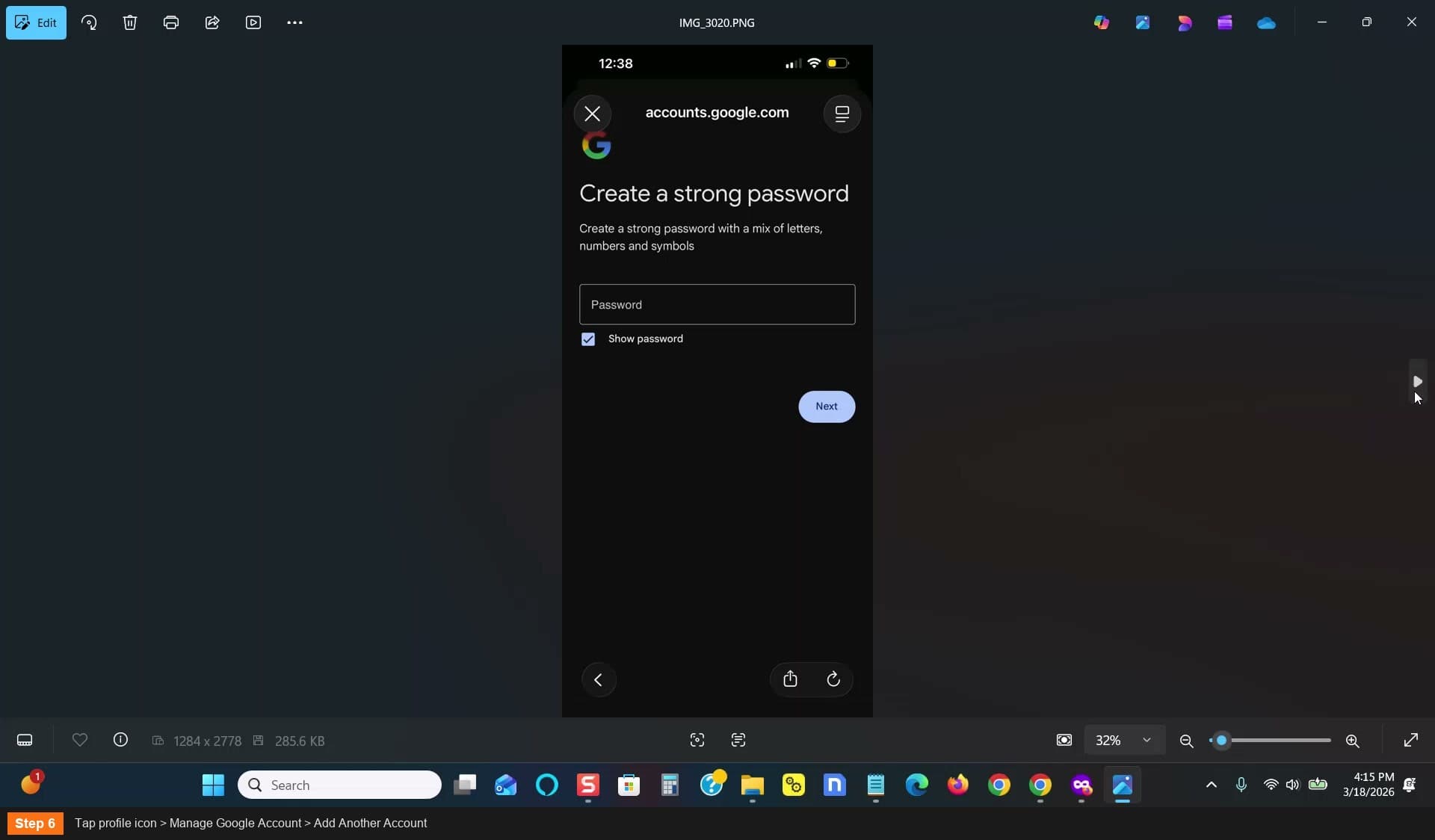
Tap profile > Manage Google Account > Add Another Account
Create a new account
- Tap Create Account — For My Personal Use
- Enter a name
- Enter birthday and gender
- Choose or create a Gmail address
- Set a password
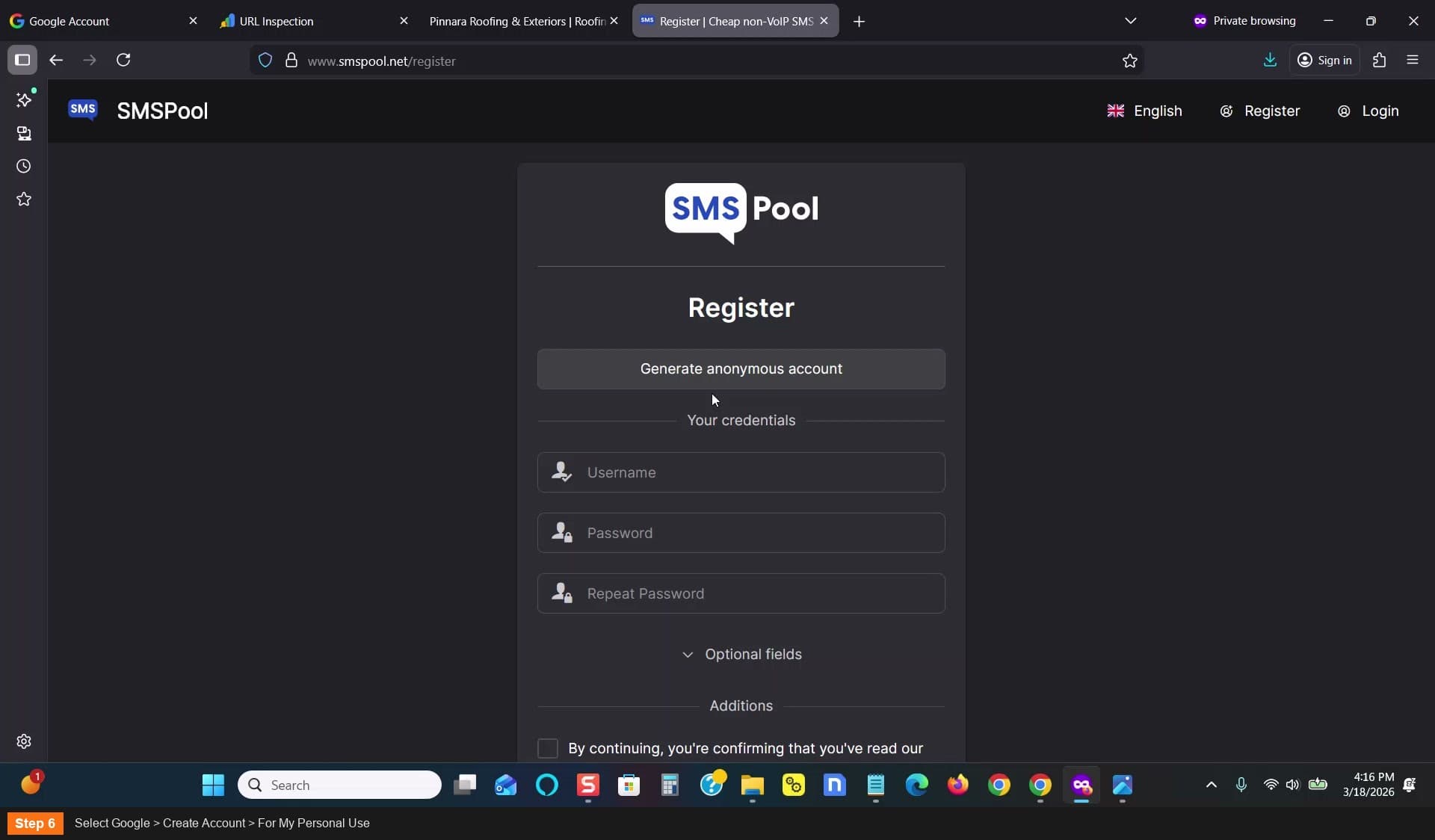
Select Google > Create Account > For My Personal Use
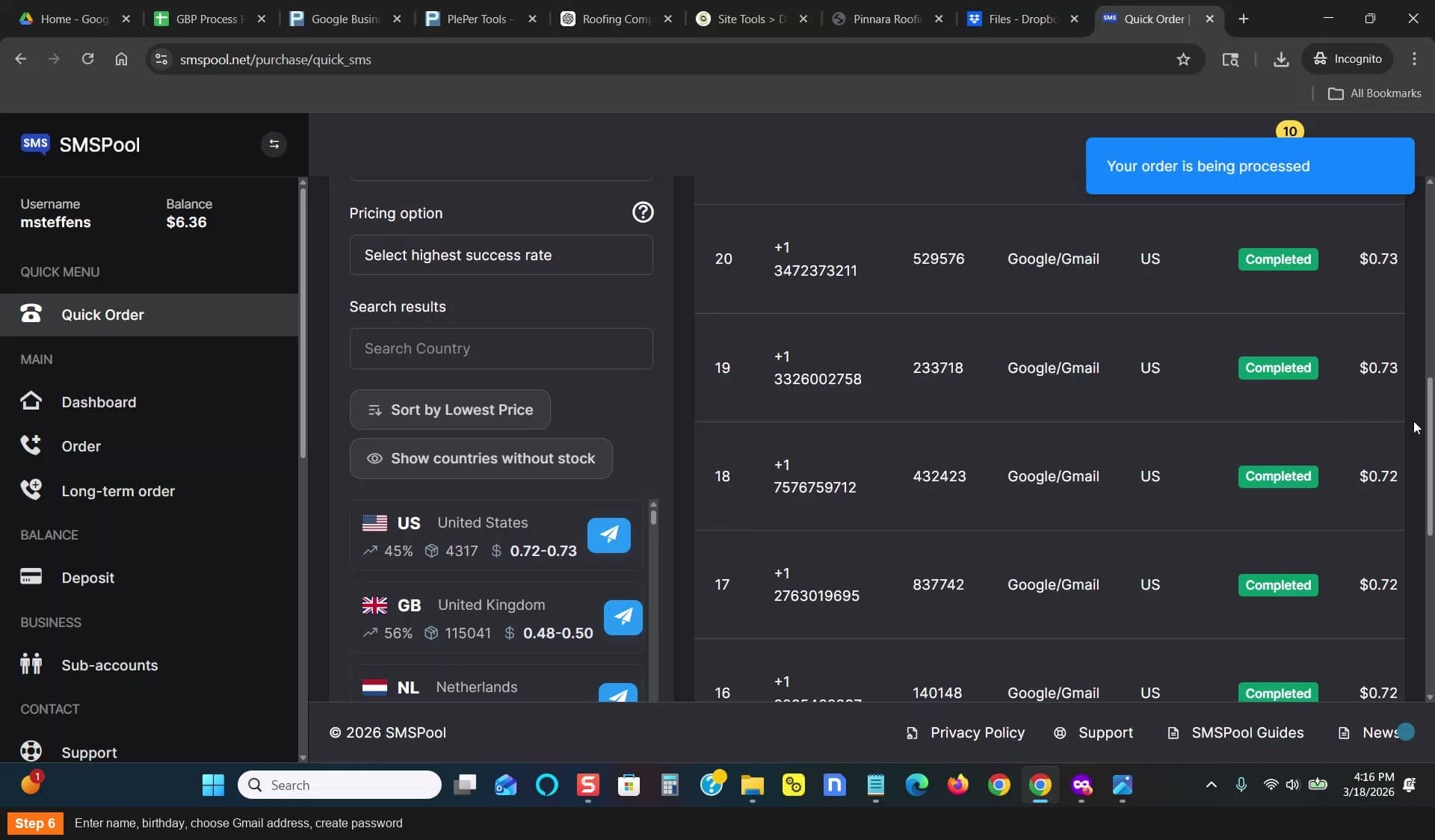
Enter name, birthday, choose Gmail address
Verify with SMS using SMSPool
When Gmail asks for a phone number for SMS verification:
- Go to smspool.net
- Click Quick Order
- Select Service: Gmail
- Select Country: US
- Copy the provided phone number
- Enter it in the Gmail app
- When the code arrives in SMSPool, enter it in the Gmail app
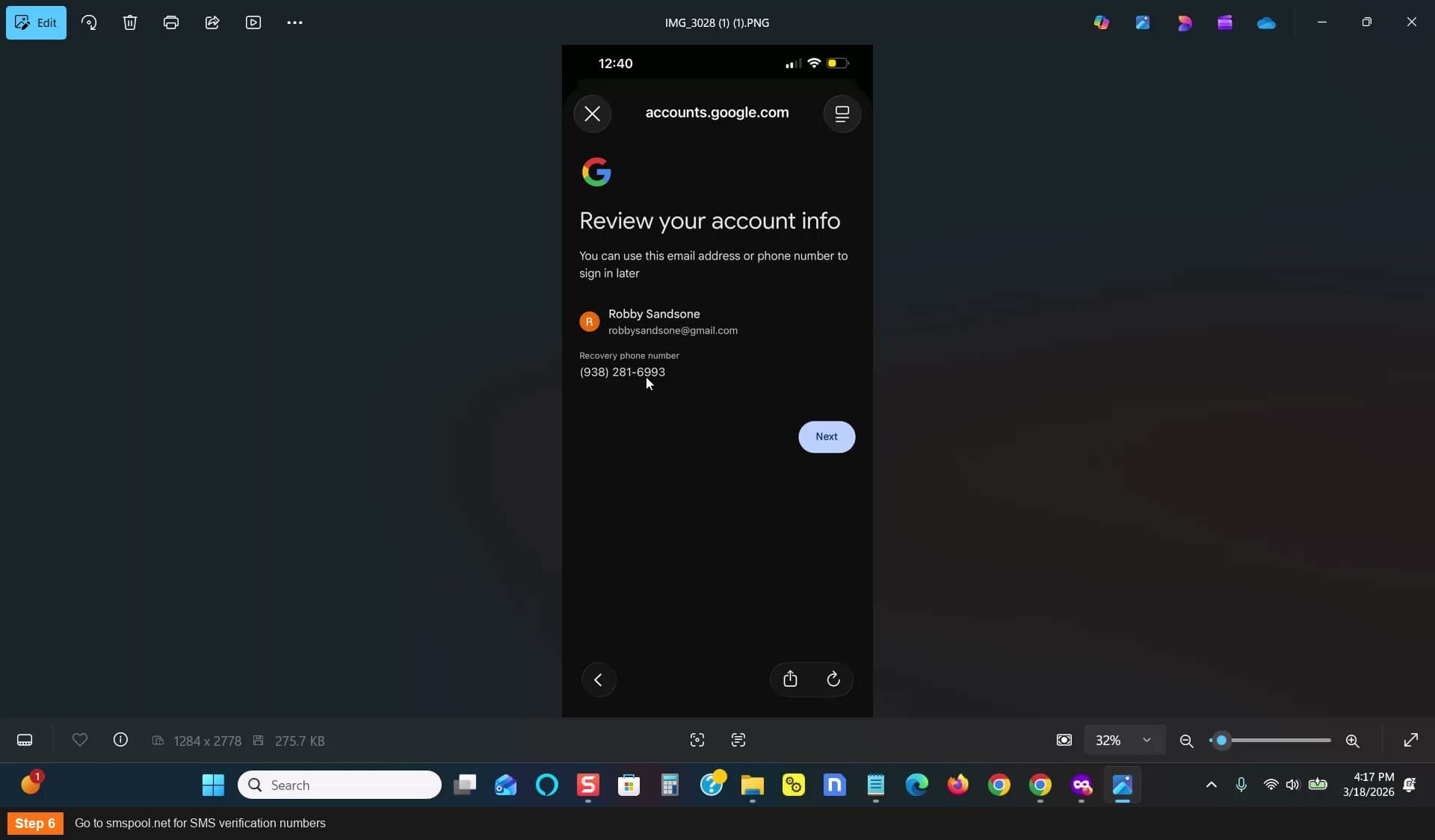
Go to smspool.net for SMS verification numbers
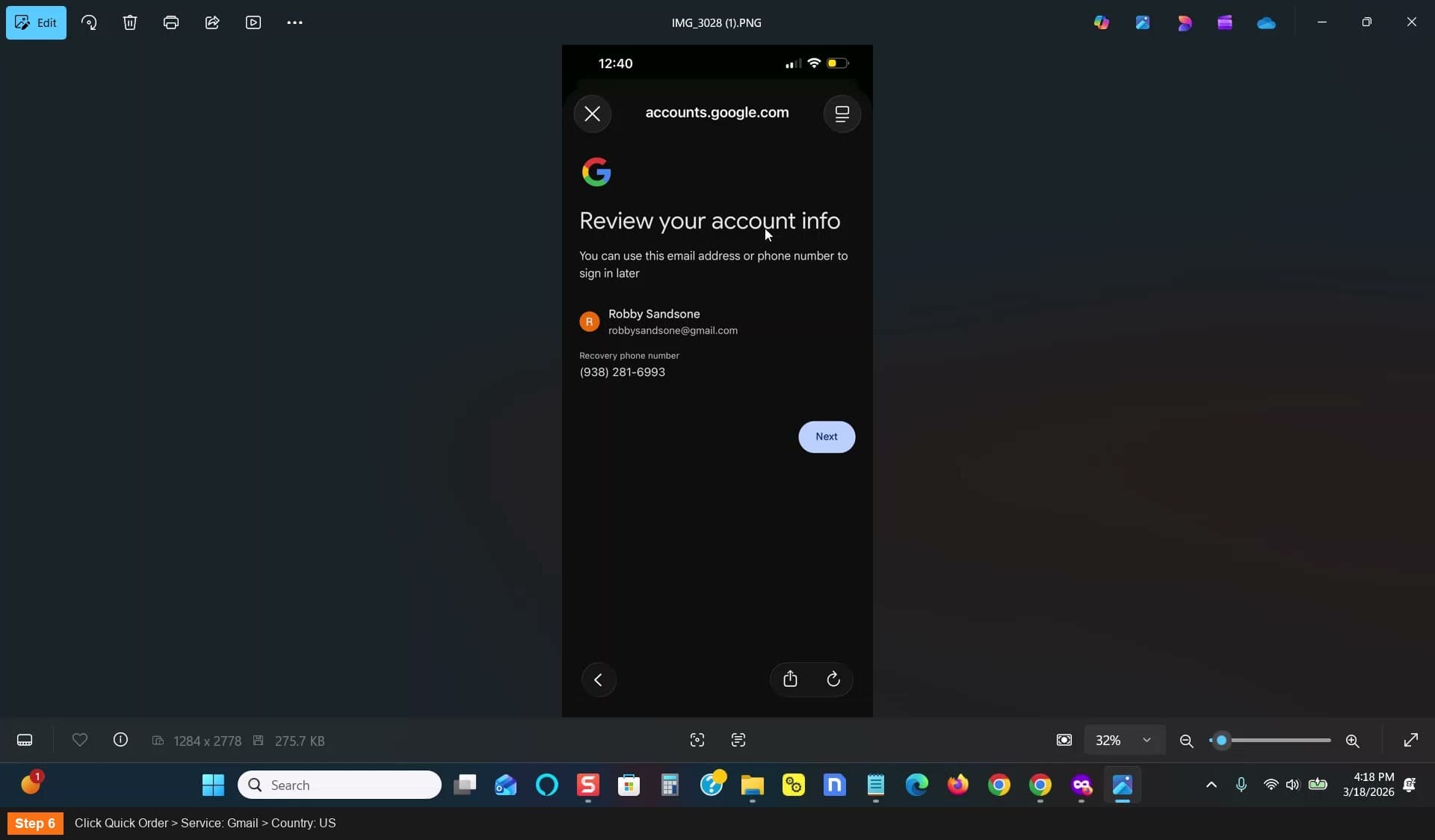
Quick Order > Service: Gmail > Country: US
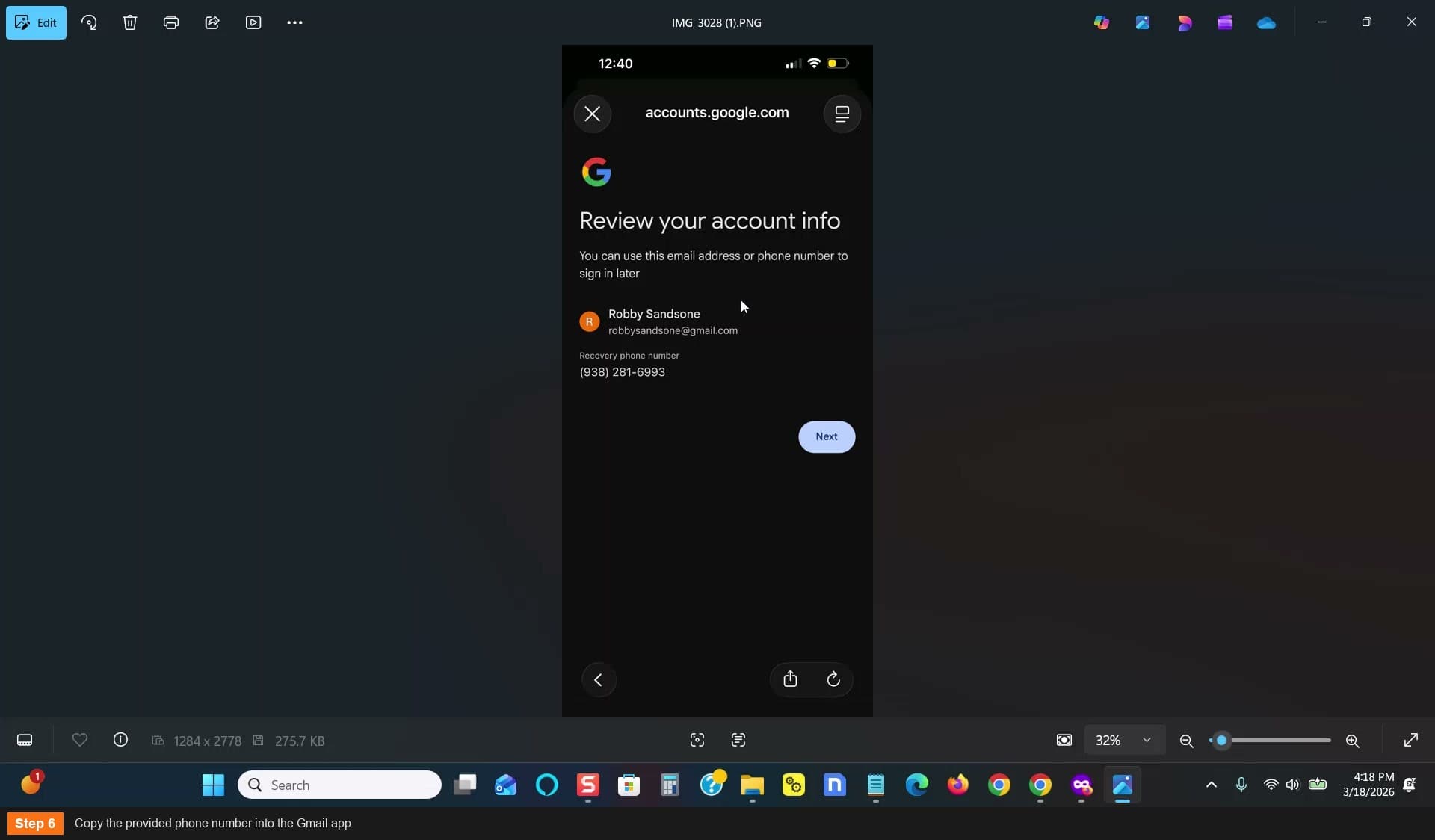
Copy the provided phone number
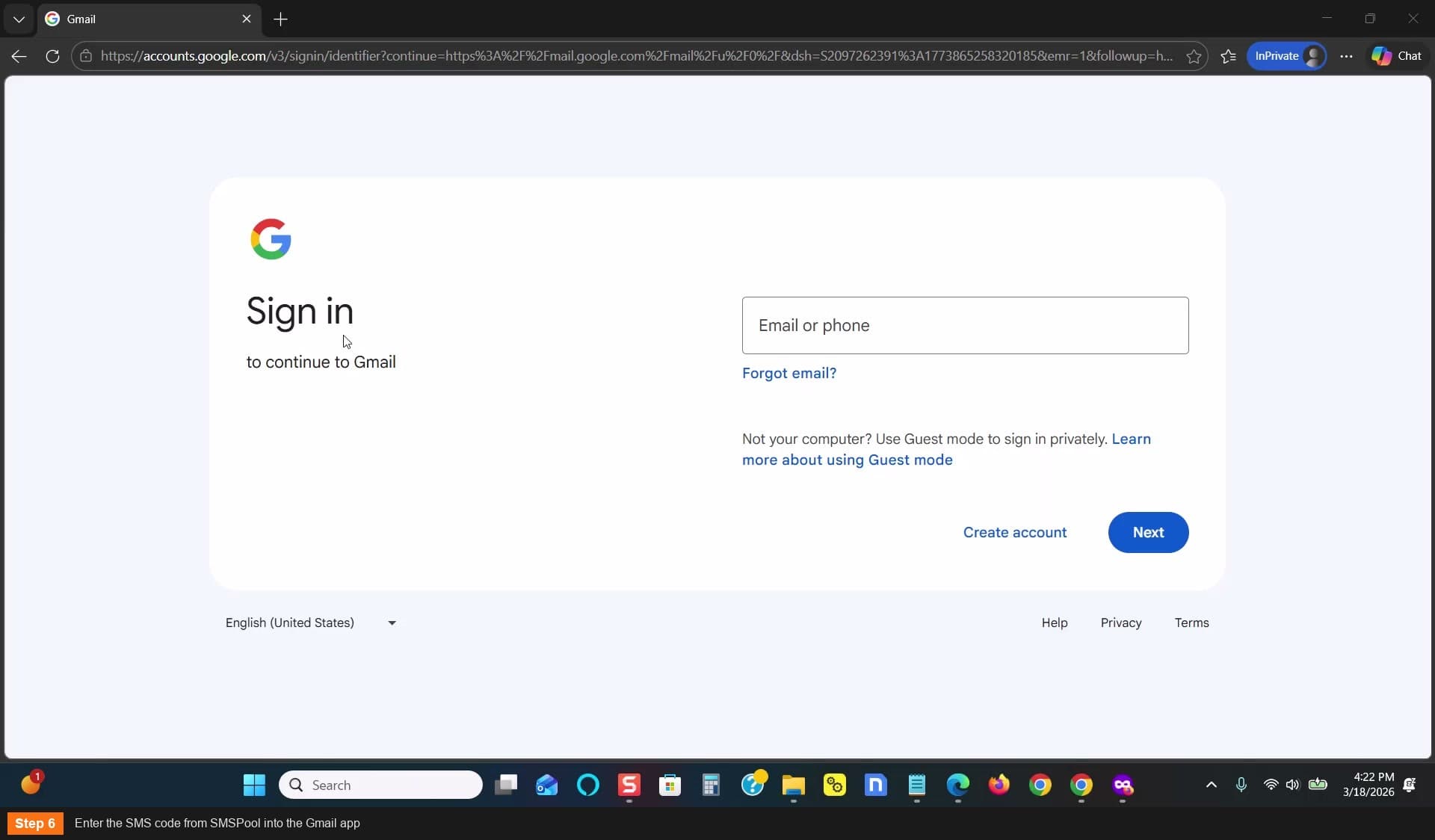
Enter the SMS code from SMSPool
Complete account setup
- Finish the remaining setup prompts
- Your new Gmail is ready to use for GBP verification
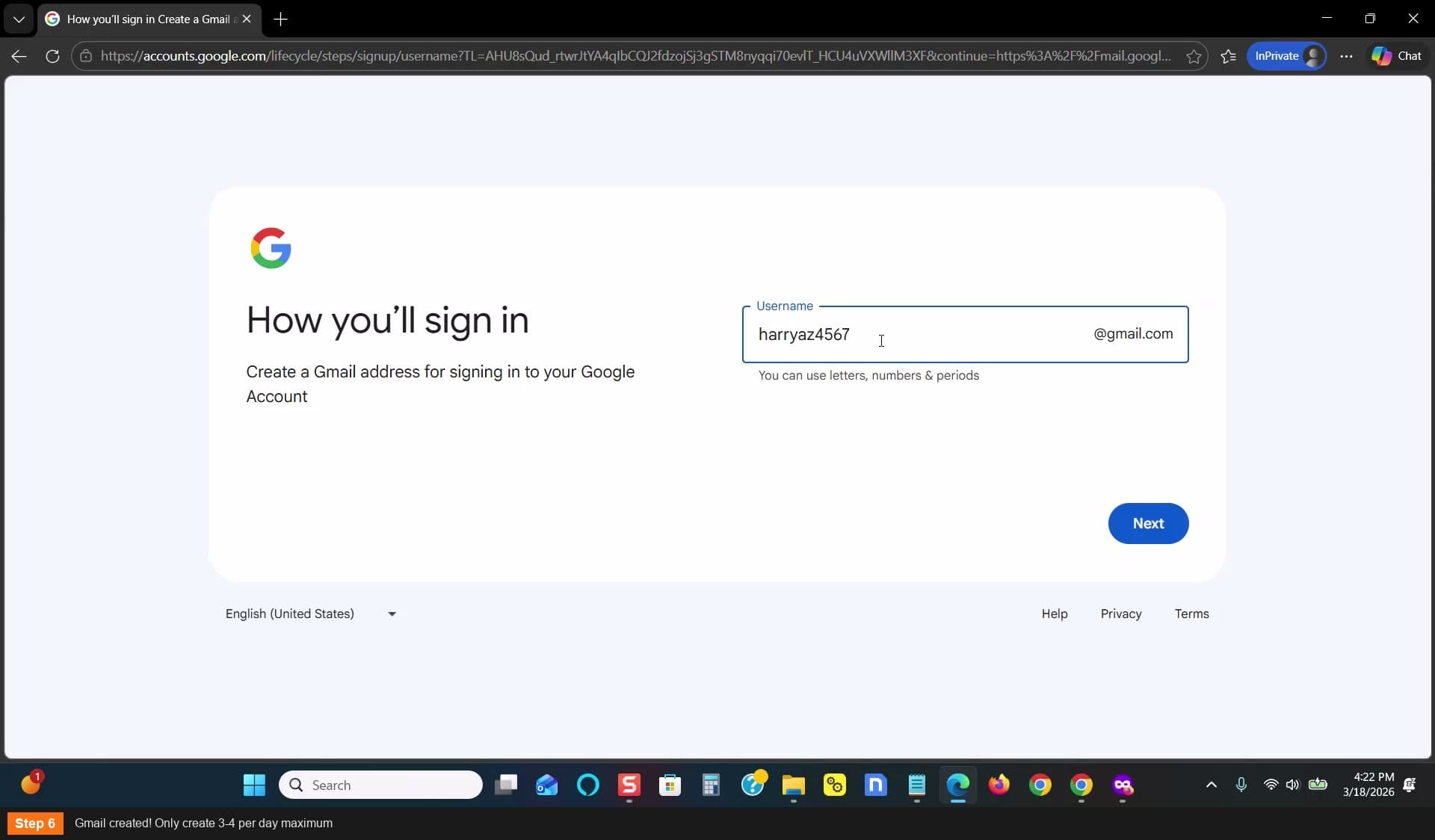
Gmail created! Only create 3-4 per day maximum
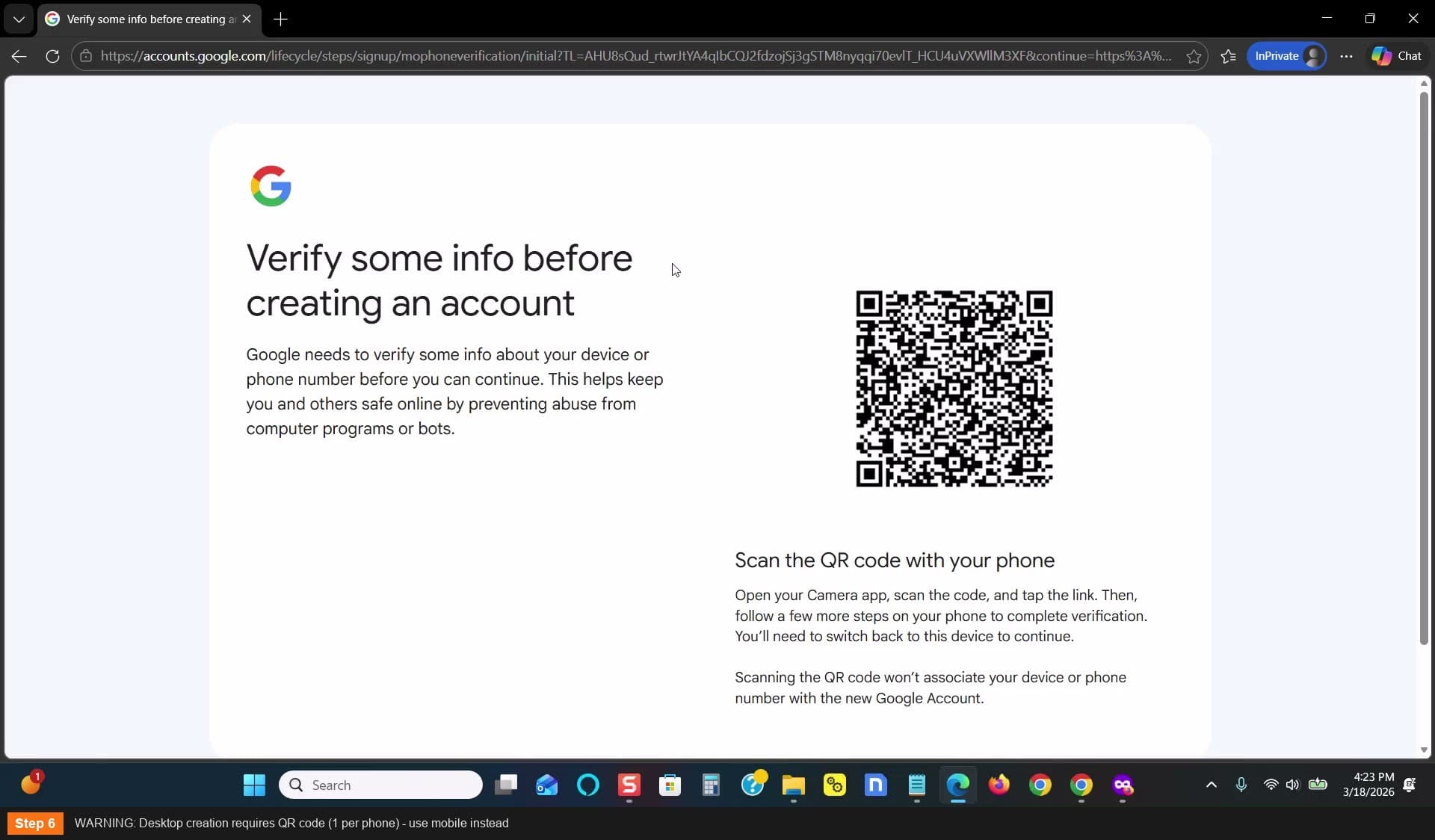
WARNING: Desktop creation requires QR code - use mobile instead
Aged Gmail accounts (4-8 years old) with no Maps/GBP activity work even better than fresh ones
You can buy aged accounts — just make sure they have zero GBP or Maps history
You can use multiple listings per Gmail account