All StepsStep 4 of 8
4
Push Website Live
Warning
The site doesn't need to look great — it just needs to be live, secure, and contain content relevant to your business category
Do This
1
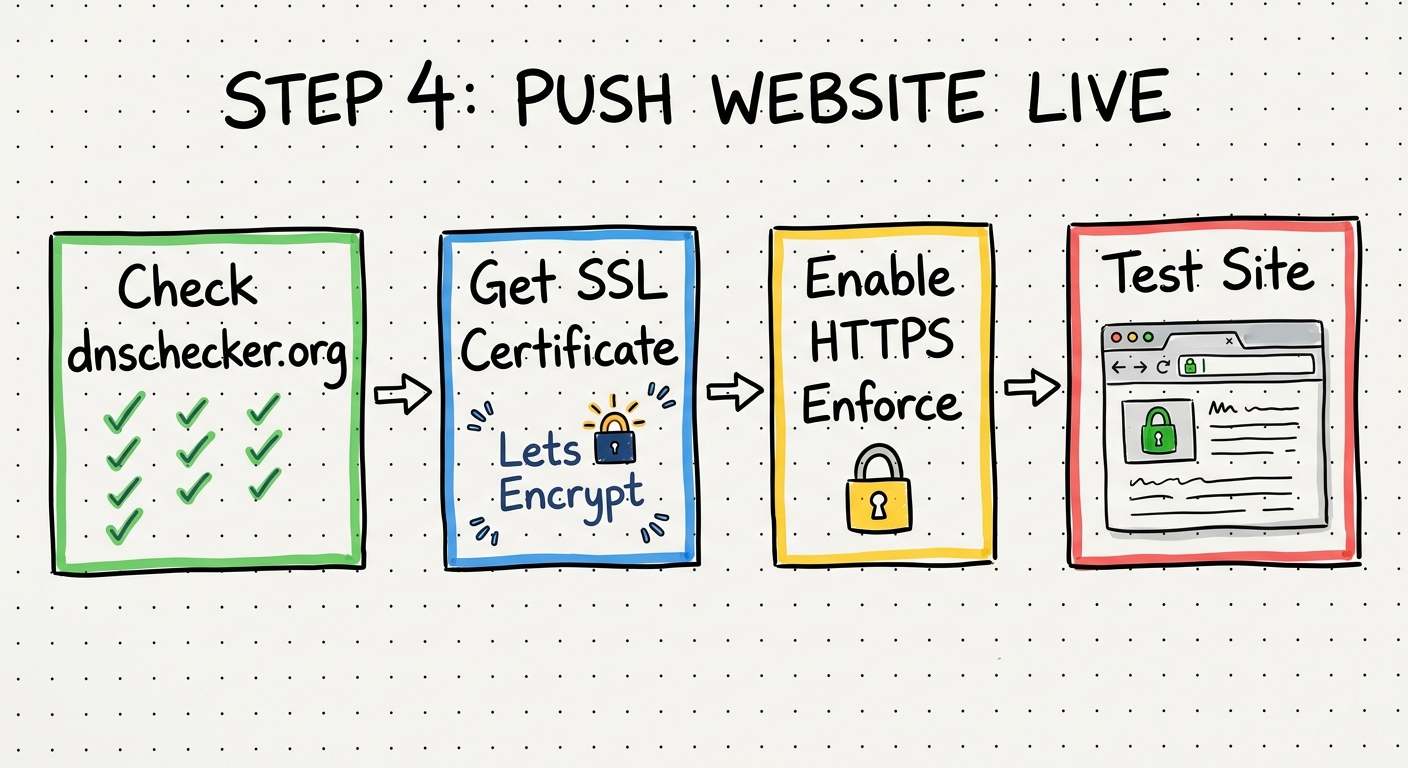
Verify DNS propagation
Go to dnschecker.org — search your domain — look for green checks on the A record
- A couple green checks is enough to proceed
- If still no green checks, wait another 10-20 minutes
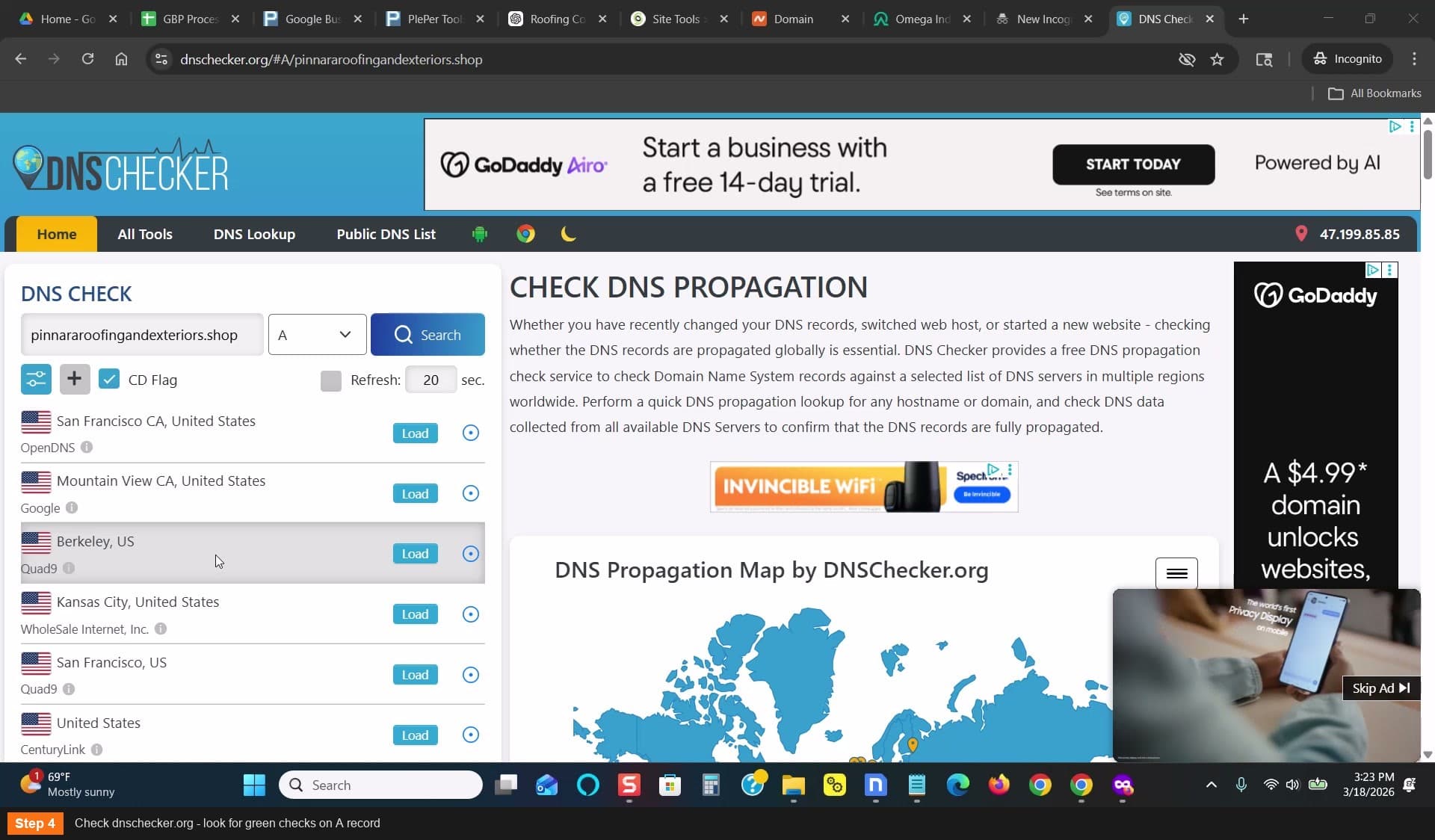
Check dnschecker.org - look for green checks
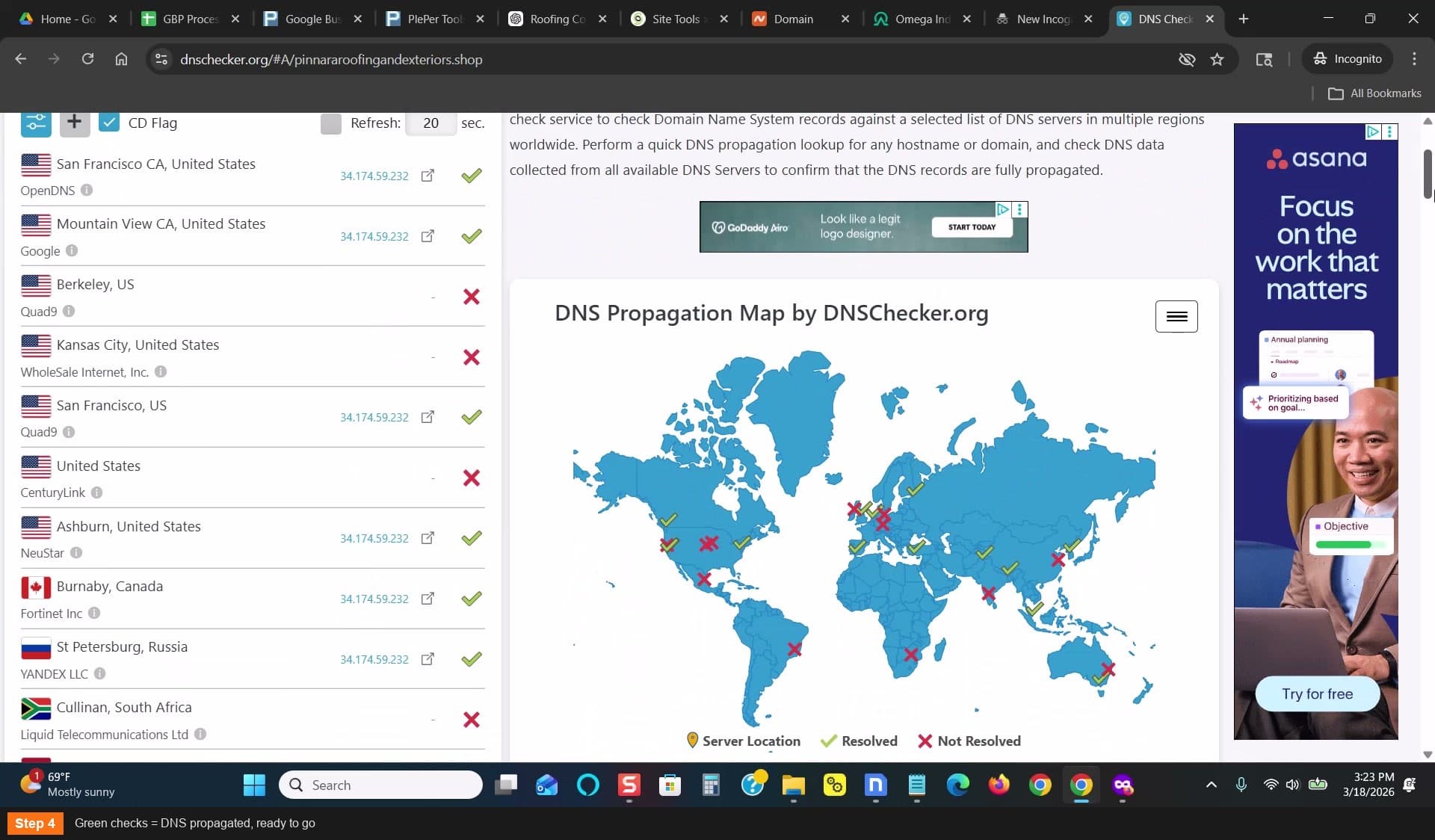
Green checks = DNS propagated, ready to go
2
Install SSL certificate
In SiteGround: scroll to Security — click SSL Manager
- Select your domain
- Choose Let's Encrypt
- Click Get
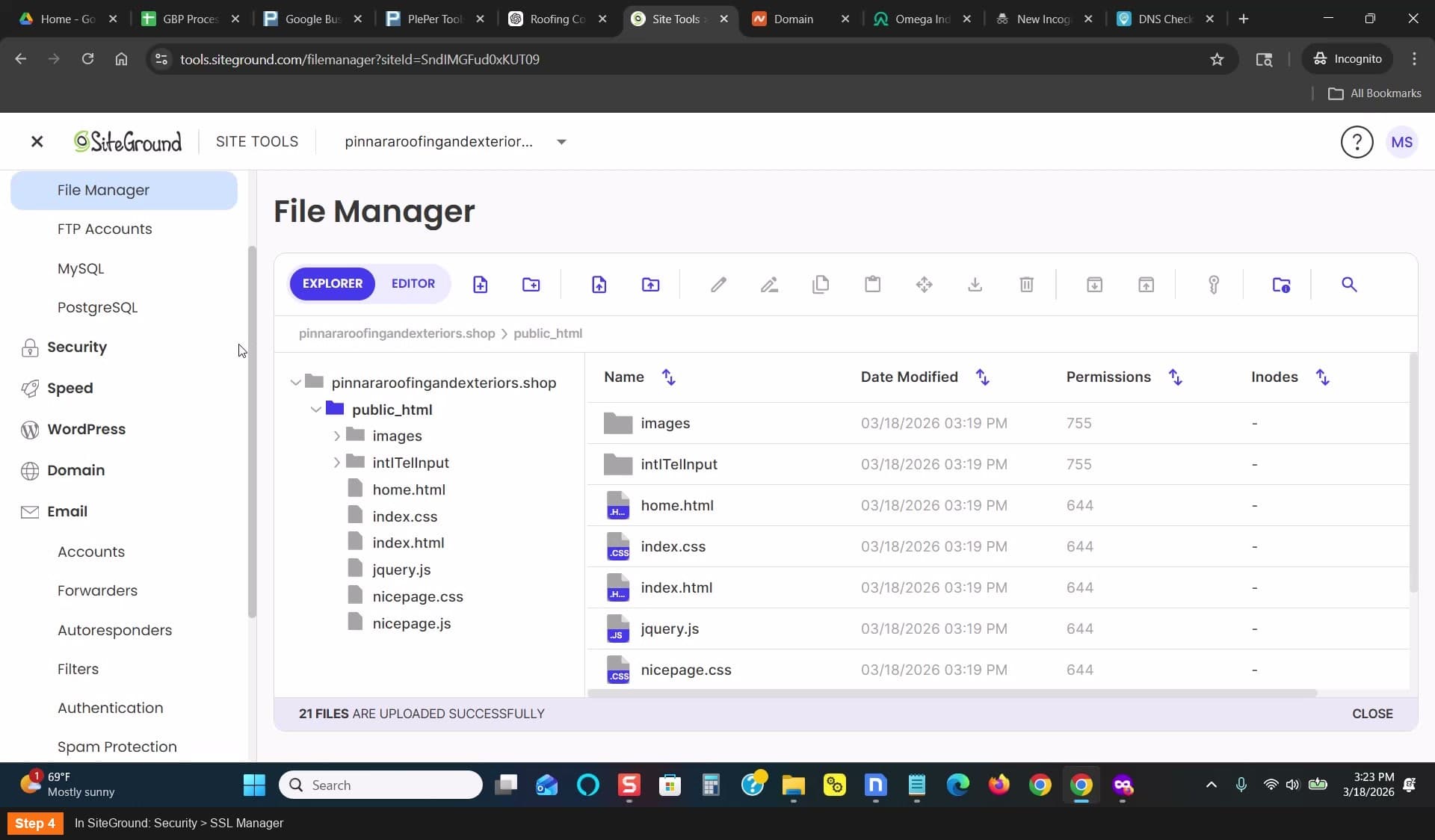
In SiteGround: Security > SSL Manager
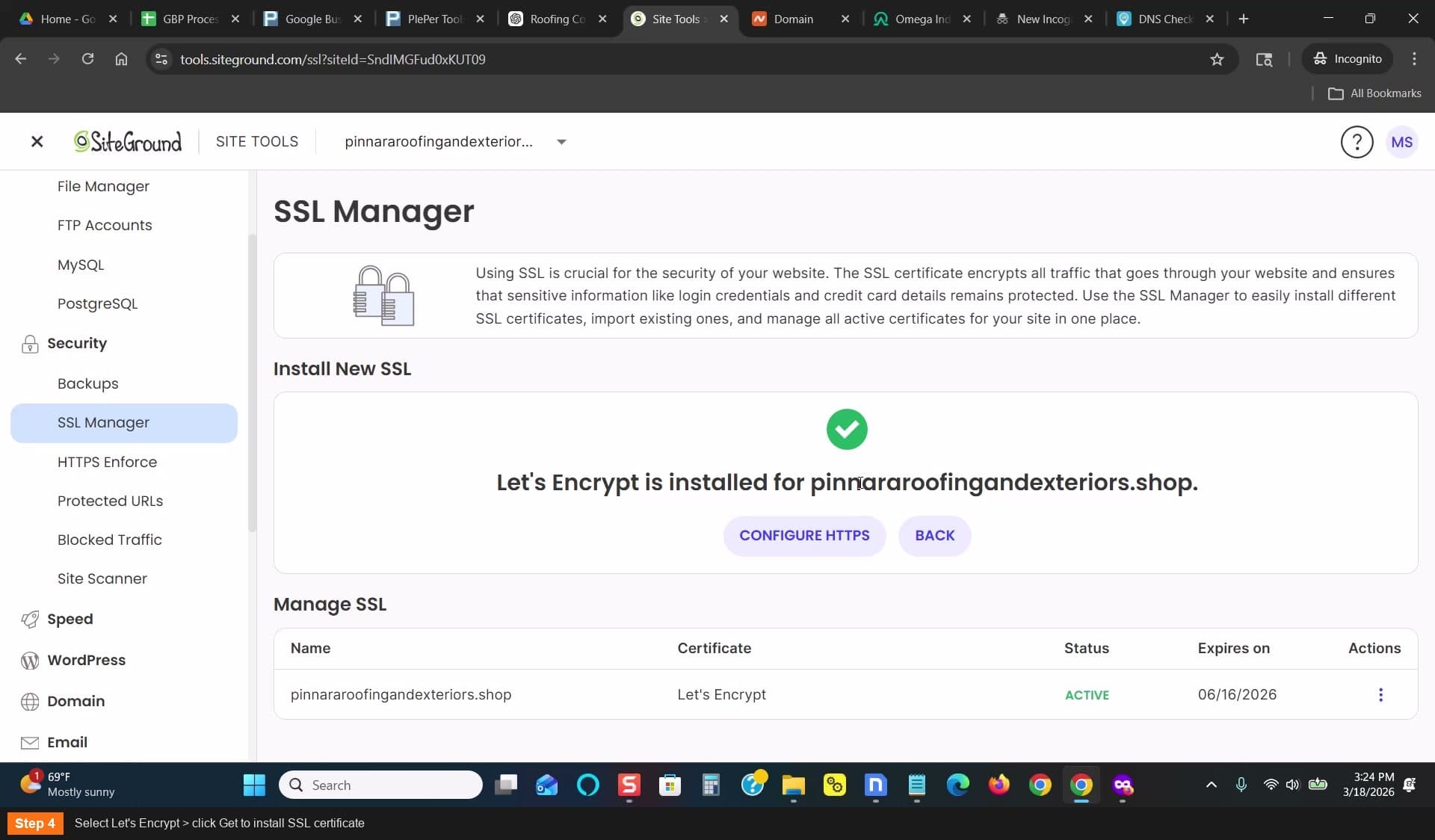
Select Let's Encrypt > click Get
3
Enable HTTPS Enforce
In SiteGround: under Security — click HTTPS Enforce — toggle it on
- This forces all traffic to use SSL
- Your site will now show the padlock icon
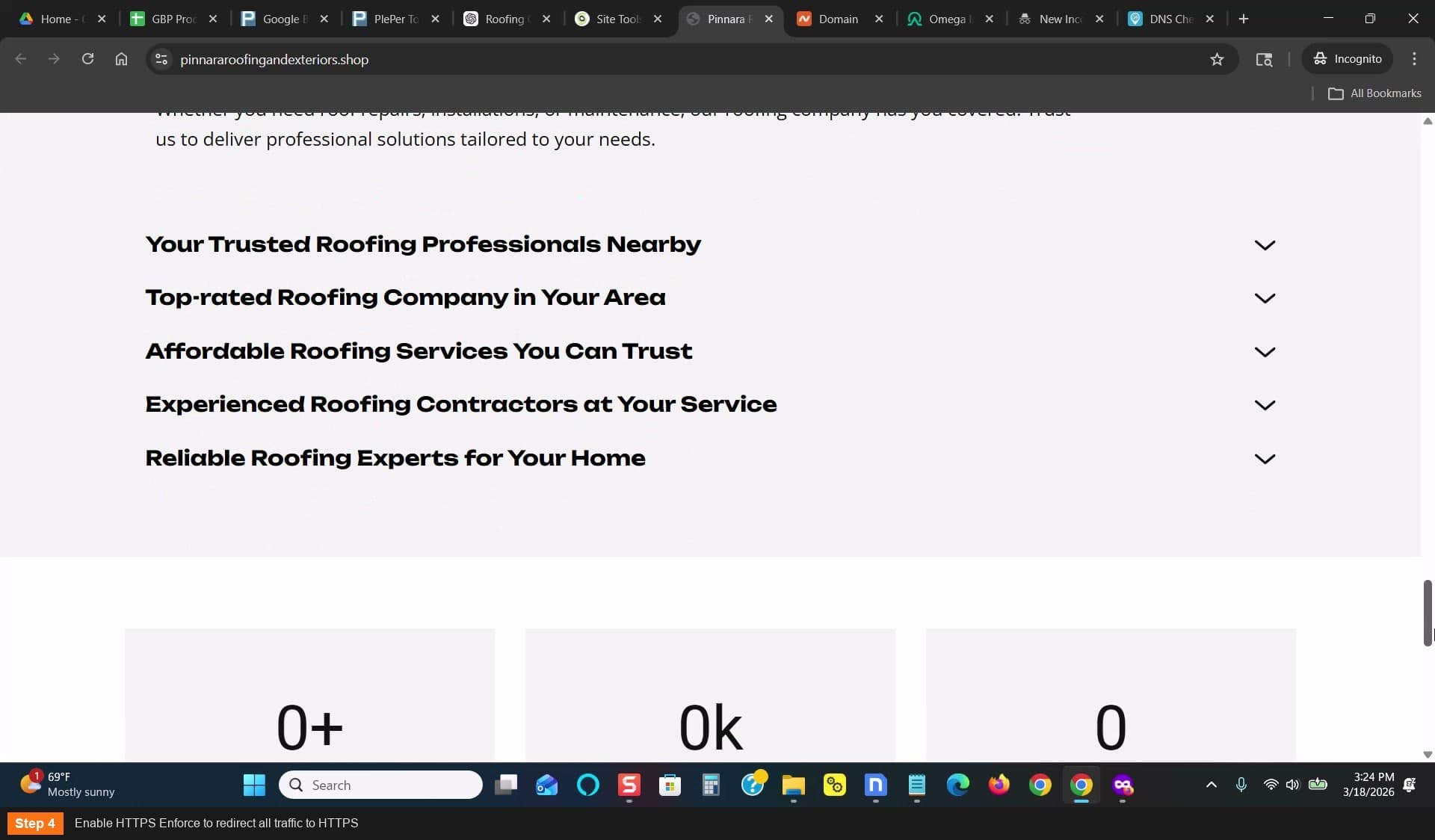
Enable HTTPS Enforce
4
Test your site
- Open your domain in a browser
- Verify it loads with the padlock icon (SSL active)
- Verify it shows content relevant to your category
- Verify your NAP is visible
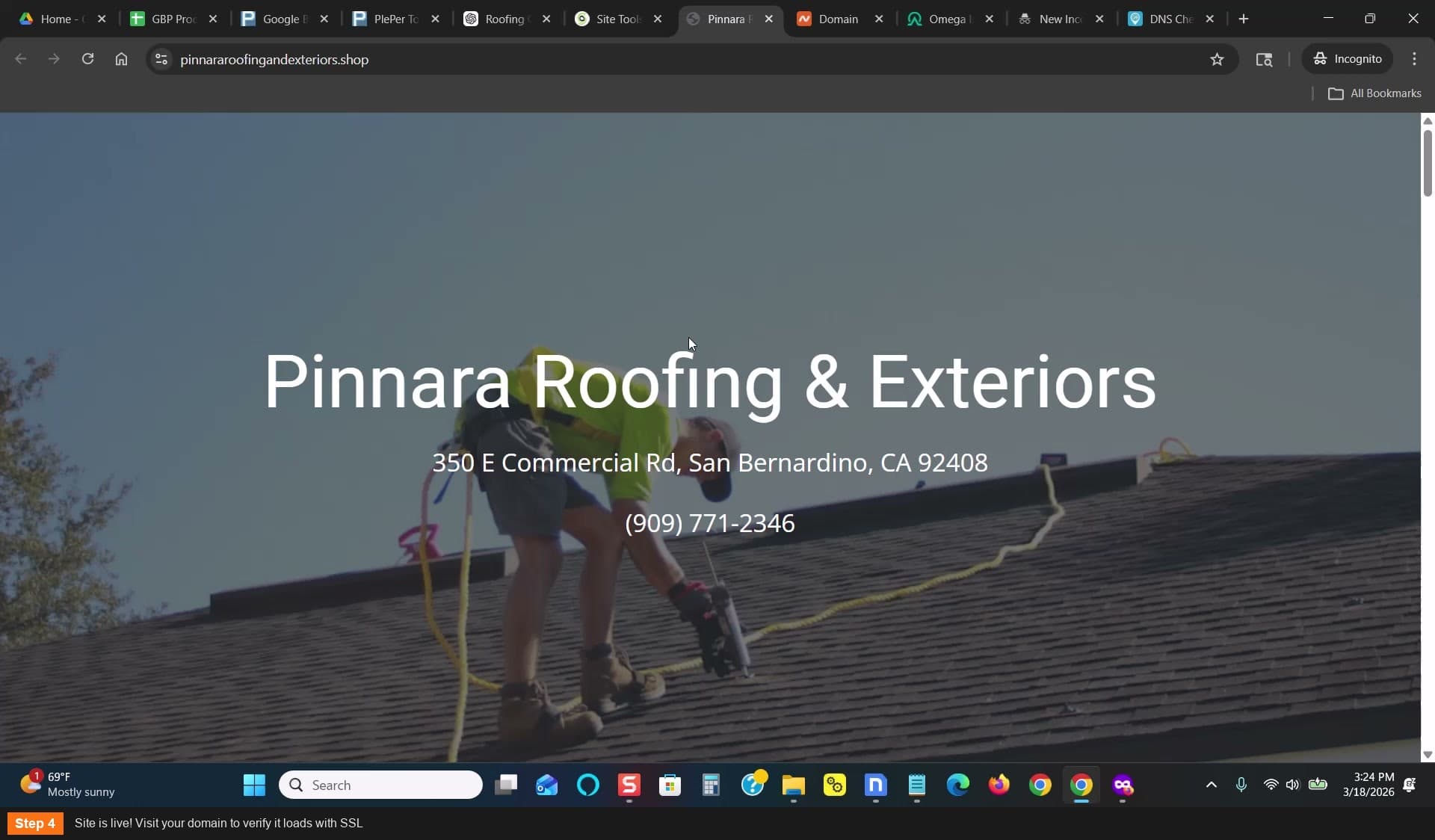
Site is live! Verify it loads with SSL
Pro Tips
If SSL install fails, wait a few more minutes for DNS to fully propagate, then try again
Tools Used
Checklist
0 of 4 completed
DNS propagation confirmed (green checks)
Let's Encrypt SSL certificate installed
HTTPS Enforce enabled
Site loads in browser with padlock icon